Agent runs.
A run gives an agent a task inside one of your workspaces and lets it work on its own. You write what you want done, pick the agent (Pi or Hermes, whichever is installed in that workspace) and the folder, and the run takes it from there. It keeps going if you close the page or the terminal.
While it works you follow its log live. When it ends you get its result and, if the folder is a git repository, a branch with its changes, ready for you to review.
You can start a run in three ways, and all three see the same runs:
- From the Runs tab of your workspace in the portal.
- From your terminal, with
nan run. - From your own scripts, with the API.
Before you start
- A workspace that is running, with Pi or Hermes installed. You can install either one from the Software panel of the workspace.
- A plan with inference. A run uses your workspace’s own inference key, and what the agent spends counts against your plan’s usage like any other request. Without inference in your plan you cannot create runs: the portal shows you the upgrade options instead.
Start a run from the portal
Open the Runs tab
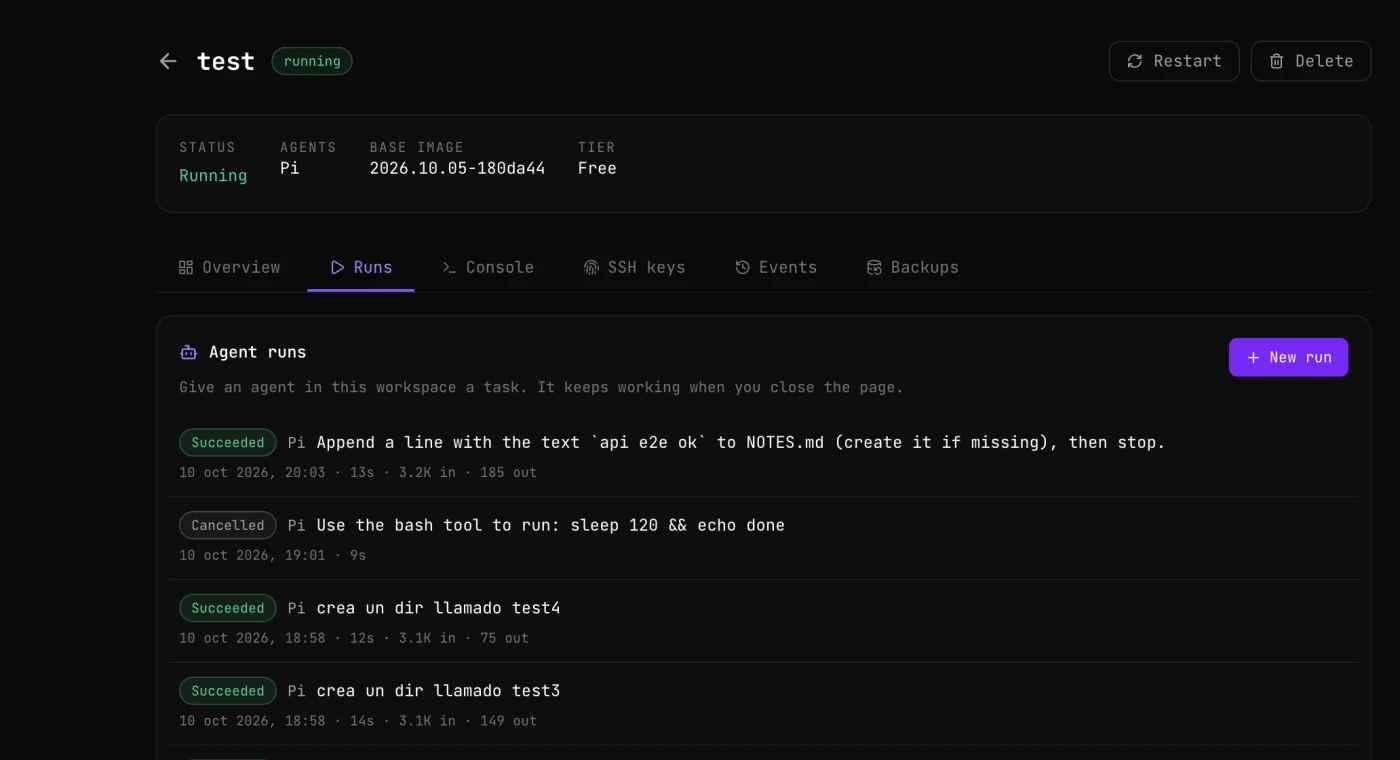
Go to cloud.nan.builders/workspaces and open a workspace. Next to Overview, Console, SSH keys, Events and Backups there is a Runs tab. Its Agent runs card lists the runs of that workspace, newest first, each with its state, the agent, the task, when it started, how long it took and the tokens it used.
Fill in the form
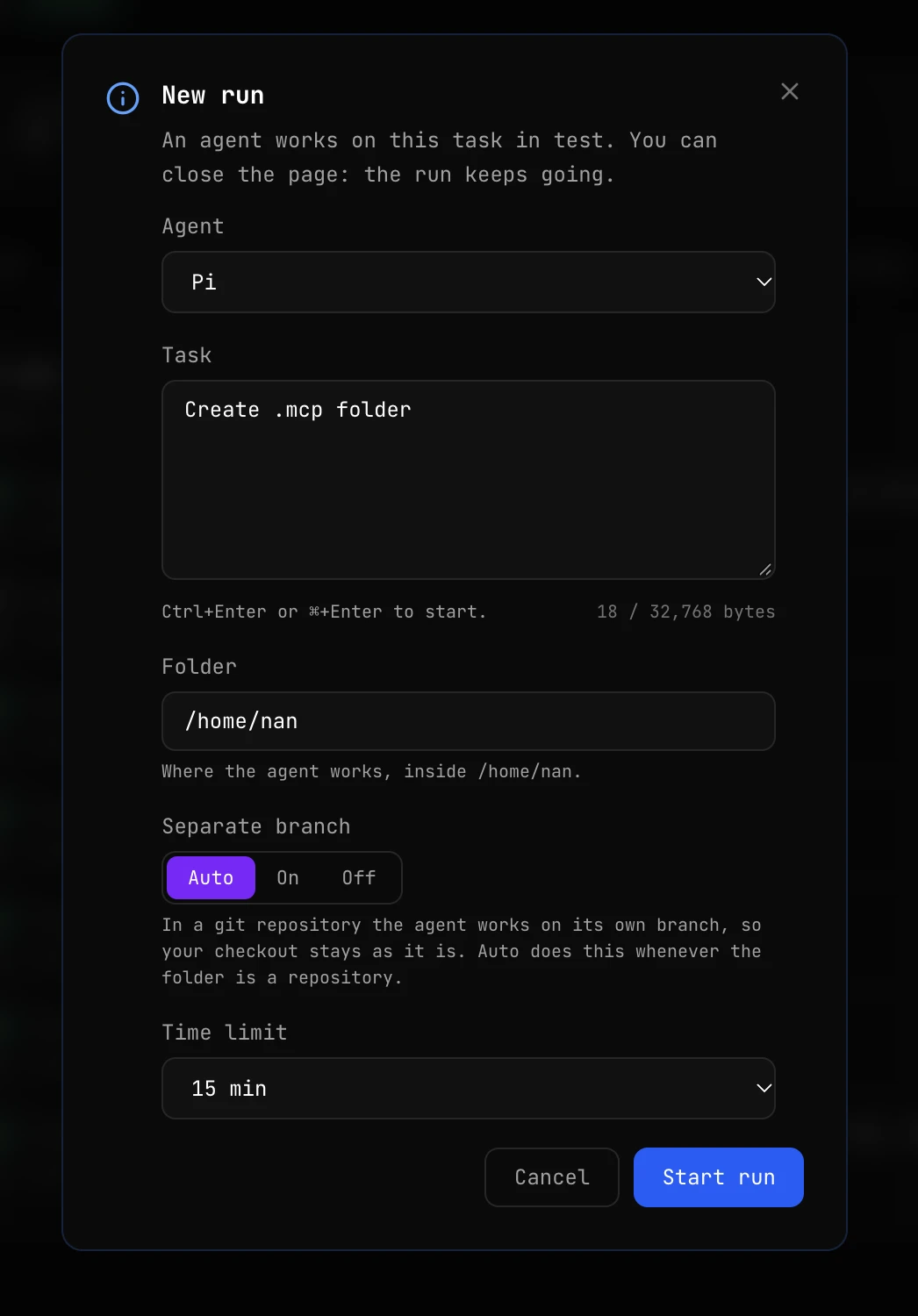
Press New run and fill in the form:
| Field | What it is |
|---|---|
| Agent | Pi or Hermes, whichever is installed in the workspace. |
| Task | What you want done, in your own words, as you would write it to the agent in a chat. Up to 32 KiB (the counter under the box shows the bytes used). |
| Folder | Where the agent works. It defaults to /home/nan and must be inside it. |
| Separate branch | Auto (the default), On or Off. In a git repository, the agent works on its own branch and your checkout stays as it is. See Where the agent works. |
| Time limit | 30 min by default, the same as the CLI and the API. The options are 15 min, 30 min, 1 hour and 2 hours. The run is stopped when it reaches it. |
Press Start run, or Ctrl+Enter (⌘+Enter on a Mac) from the task box.
Follow it live
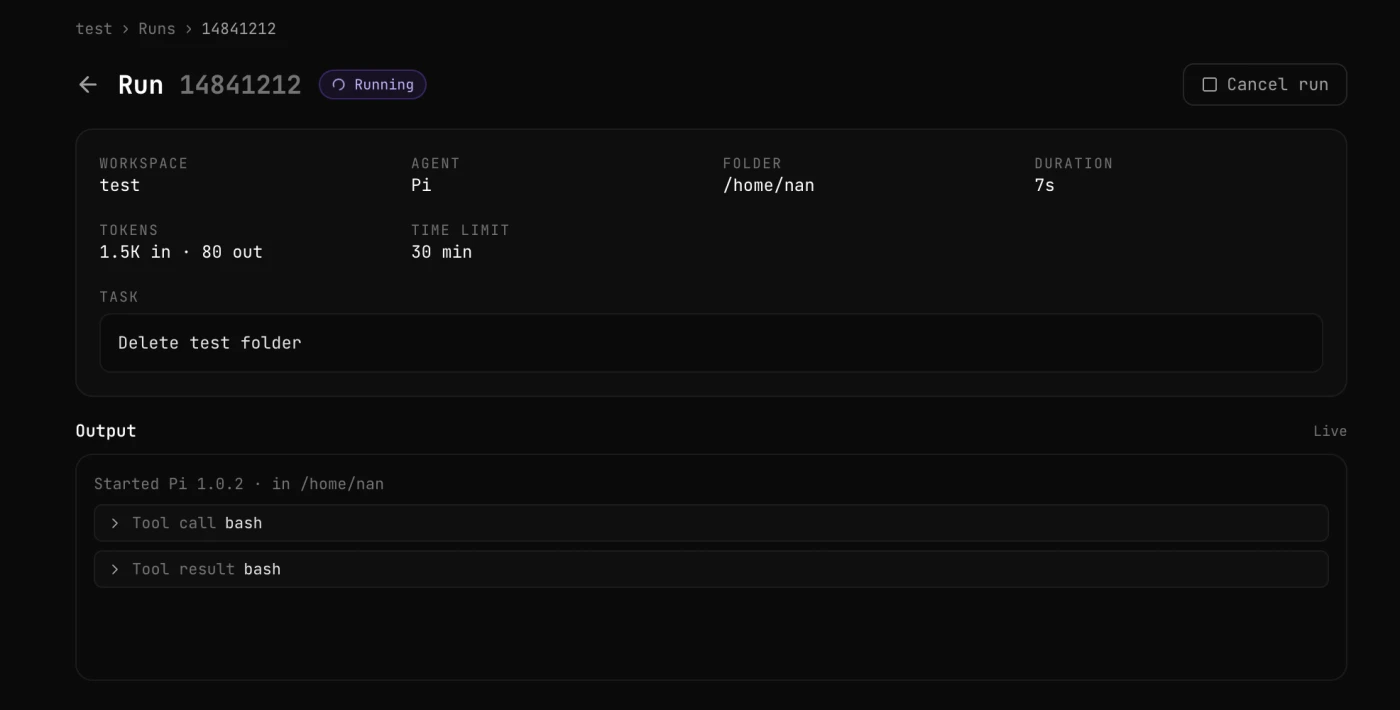
Click a run in the list to open its page. At the top you see its state, the workspace, the agent, the folder, how long it has been running, the tokens it has used, its time limit and the task. Below, under Output, the log fills in live as the agent works: what it says, the tools it calls and what they answer. Click a Tool call or Tool result line to unfold it. When the run ends, the page shows how it ended, the agent’s summary and, if there is one, the branch with its changes.
You can close the page at any moment. The run goes on, and its page is there when you come back.
Cancel it, if you need to
Cancel run stops the run within a few seconds. The portal asks you to confirm first.
Where the agent works
What happens to your files depends on the Folder you choose and on the Separate branch setting.
| The folder is… | Auto (default) | On | Off |
|---|---|---|---|
| inside a git repository | Separate branch | Separate branch | Directly in the folder |
| not a git repository | Directly in the folder | The run fails with a configuration error | Directly in the folder |
With a separate branch, the agent does not touch your checkout. It works in a separate copy of the repository (a git worktree), on a new branch called nan-run/ followed by the first 8 characters of the run id, for example nan-run/6f1c2a9b. When the agent ends, whatever it changed is committed on that branch. The run never pushes: the branch stays in the repository inside your workspace, and you decide what to do with it. If the agent changed nothing, the branch is deleted.
To review the changes and bring them in, open a terminal in your workspace (over SSH or the Console tab) and, from the repository:
git log -p HEAD..nan-run/6f1c2a9b
git merge nan-run/6f1c2a9b
Without a separate branch, the agent works directly in the folder and there is no branch. Use it for folders that are not repositories, or when you want the changes right there.
The folder must be inside /home/nan, your home in the workspace.
Run states
| State | What it means |
|---|---|
queued | Waiting for a free place. See How many runs at once. |
starting | Being set up in the workspace. |
running | The agent is working. |
succeeded | The agent finished its task. |
failed | The agent stopped with an error, or the run could not start (for example, Separate branch set to On in a folder that is not a repository). |
cancelled | You cancelled it. |
timed_out | It reached its time limit and was stopped. |
The portal shows the same states with a capital letter, for example Running, Succeeded or Cancelled.
Through the CLI and the API the time limit goes from 60 seconds to 2 hours. The portal offers 15 min, 30 min, 1 hour and 2 hours, with 30 min by default.
How many runs at once
How many runs work at the same time depends on the size of the workspace:
| Size | Runs at once |
|---|---|
| Micro (also the free Premium workspace) | 1 |
| Nano | 2 |
| Basic | 3 |
| Medium | 5 |
| Large | 8 |
On top of that, runs share your inference concurrency, so you can have at most 5 runs working at once across all your workspaces (8 on Premium).
Runs beyond those limits are not refused: they wait in a queue and start in order, first in, first out. The queue holds up to 20 runs per workspace and 50 in total, and you can create up to 60 runs per hour.
Each run works in its own process inside the workspace, with its own share of CPU and memory. If one gets out of hand, it is stopped alone: your SSH sessions and your always-on agents keep working.
Inference and secrets
Runs use the inference key of the workspace, the same one its agents use when you work with them by hand. Their requests count against your plan’s usage like any other.
Secrets in your workspace’s environment file, such as that inference key or a Telegram bot token, are shown as *** in run logs and results, so a log does not leak them.
From the terminal: nan run
The NaN CLI starts and follows runs from your own terminal. You need version 0.1.25 or newer: nan --version prints nan <version>.
Install or update the CLI
curl -fsSL https://nan.builders/install | bashSign in
nan auth login --email you@yoursIt emails you a sign-in link. Copy it from the email and paste it back into the command without opening it in the browser first: it works once. The NaN CLI guide has the details. For scripts, CI or a server, use a token instead: see Authentication.
Start a run
nan run "add tests for the date parser and make them pass"The CLI streams the log to your terminal until the run ends.
A few more ways to start one:
# A specific workspace, agent and folder
nan run --ws develop --agent hermes --cwd /home/nan/projects/api "review the open TODOs"

# The task from a file, or from stdin
nan run -f task.md
git diff | nan run -

# Start it and get the id back without waiting
nan run --detach "upgrade the dependencies"| Flag | Default | What it does |
|---|---|---|
--ws NAME | your only workspace | The workspace to run in. If you have more than one and leave it out, the CLI lists them and exits with code 64. |
--agent pi|hermes | pi | The agent. |
--model M | the agent’s own | The model the agent uses. |
--cwd PATH | /home/nan | The folder in the workspace. |
--worktree / --no-worktree | auto | Force a separate branch on or off. See Where the agent works. |
--timeout D | 30m | The time limit, from 1m to 2h. |
--detach | Start the run, print its id and return. | |
--idempotency-key K | If a retry sends the same key and request, you get the run already created instead of a second one. | |
--json | Print events as JSON lines, then the finished run. | |
-f FILE | Read the task from a file, or from stdin with -. | |
--token-file PATH | Authenticate with the token on the first line of a file. See Authentication. |
The flags match the portal form: Agent is --agent, Folder is --cwd, Separate branch is --worktree / --no-worktree and Time limit is --timeout. The task is the text in quotes.
While it streams, Ctrl-C once stops following the log: the run keeps going and the CLI tells you how to pick it up again. Ctrl-C twice within 2 seconds cancels it.
Manage your runs
nan runs ls                # your runs, newest first
nan runs show <id>         # state, result and prompt
nan runs logs <id> -f      # follow the log until it ends
nan runs cancel <id>
nan runs logs <id> --json prints one JSON event per line, handy for scripts. Each event has a type; these are the main ones:
| Type | What it is |
|---|---|
started | The run started: agent, model, folder and, if there is one, the branch. |
message | Text from the agent. |
tool_call / tool_result | A tool the agent called, and what it answered. |
log | A line of output that is not a message. |
usage | Tokens used so far. |
error | Something went wrong, with a code. |
finished | The run ended: its state and the agent’s summary. |
Exit codes
nan run and nan runs logs -f exit with the outcome of the run, so a script can act on it without reading the text:
| Code | Meaning |
|---|---|
| 0 | succeeded |
| 1 | failed |
| 2 | timed out |
| 3 | cancelled |
| 4 | the workspace is not ready for it: agent not installed, no inference key or a bad configuration |
| 64 | usage error, including more than one workspace and no --ws |
| 65 | not signed in, session expired or not allowed |
| 69 | nan.builders unavailable, or the stream was lost (the run goes on, and the id is printed) |
| 75 | the run was accepted and is still going (--detach, or Ctrl-C once) |
Under set -e, allow for the 75 of --detach:
id=$(nan run --detach "upgrade the dependencies") || [ $? -eq 75 ]Authentication
nan run and nan runs use the first of these they find:
NAN_TOKEN: an environment variable holding a platform token (nan_pat_...) or an API key (sk-...). It is read on every command and never written to disk.--token-file PATH: the token on the first line of a file. The file must be private (chmod 600): on macOS and Linux, one that other users can read or write is refused.- A saved token, from
nan auth login --api-token. - Your session, from
nan auth login(the emailed sign-in link). - A saved API key, from the Setup tab (or an
sk-...key saved withnan auth login --api-token).
nan auth login --api-token reads the token from stdin only, hidden while you paste it, checks it against nan.builders and saves it with mode 0600. It keeps it apart from the API key, so the Setup tab never copies a platform token into your tools’ configuration:
nan auth login --api-token              # paste it when asked
nan auth login --api-token < token.txt  # or pipe it in
Never put a token on the command line itself: it would end up in your shell history and in ps.
In the CLI, a platform token only works for nan run and nan runs (see API keys and tokens). nan me, nan metrics usage and the dashboard still need a session from nan auth login.
Use the CLI in CI or on a server
Create a token, store it in your CI’s secret store and expose it as NAN_TOKEN. For example, in GitHub Actions:
- name: Review the PR with an agent
  env:
    NAN_TOKEN: ${{ secrets.NAN_TOKEN }}
  run: |
    curl -fsSL https://nan.builders/install | bash
    nan run --ws ci --timeout 20m -f .github/review-task.md
That step waits for the run and fails if the run fails. To start the run and move on without waiting, use --detach and allow for its exit code 75:
nan run --ws ci --detach "upgrade the dependencies" || [ $? -eq 75 ]Keep the token secret
Store the token only as a secret (secrets.NAN_TOKEN in GitHub Actions), never in the repository or in the workflow file. It can start runs that spend your plan.
On a server you set up once, save it with nan auth login --api-token instead.
From the API
The same runs are available over HTTP, at https://api.nan.builders/v1/runs, for your own scripts and integrations.
API keys and tokens
Two kinds of credentials work with the runs API. Both are in your settings on the portal:
| API Keys | Tokens | |
|---|---|---|
| Looks like | sk-... | nan_pat_... |
| Inference (models) | Yes | No, never |
| Platform API (runs, your workspaces) | Yes | Yes |
| Who can create them | Plans with inference | Any member with an active subscription |
A token is the one to give a script that only manages runs. It cannot call the models directly, but it can start runs that spend your plan, so keep it as private as an API key and revoke it if it leaks. Create it under Settings → Tokens:
- It is shown once, when you create it. Copy it then.
- You can have up to 10 active tokens.
- Each one expires after 30, 90 or 365 days, or never.
- You can revoke any of them at any time.
Creating runs still needs a plan with inference, whatever credential you use. The API reference lists which credential each endpoint accepts.
An agent cannot launch runs by itself
The key inside a workspace, the one its agents use for inference, cannot manage runs: the API answers it with 403. An agent working in your workspace cannot start new runs on its own, unless you give it one of your own API keys or tokens.
Create a run and follow it
An end-to-end example: create a run, keep its id (with jq) and follow its log live until it ends. If the run cannot be created, it prints the error instead of following the log.
export NAN_TOKEN="nan_pat_..."

RESP=$(curl -s https://api.nan.builders/v1/runs \
  -H "Authorization: Bearer $NAN_TOKEN" \
  -H "Content-Type: application/json" \
  -d '{
    "workspace": "develop",
    "agent": "pi",
    "prompt": "add tests for the date parser and make them pass",
    "cwd": "/home/nan/projects/api"
  }')
RUN_ID=$(echo "$RESP" | jq -r '.id // empty')
if [ -z "$RUN_ID" ]; then
  echo "$RESP"
else
  curl -N "https://api.nan.builders/v1/runs/$RUN_ID/events" \
    -H "Authorization: Bearer $NAN_TOKEN" \
    -H "Accept: text/event-stream"
fi
The fields match the portal form: Agent is agent, Task is prompt, Folder is cwd, and the optional Separate branch and Time limit are git_isolation and timeout_seconds.
The stream sends one run_event frame per event of the log, a state frame when the run changes state, and an end frame with the finished run, after which it closes.
Full reference: API reference → Runs. It has every endpoint (list, retrieve, cancel), the request and response fields, the event types, how to resume a stream, idempotent retries and every error code. To find a workspace’s name or id from a script, see API reference → Workspaces.
FAQ
Does a run push my code anywhere?
No. With a separate branch, the changes stay on a nan-run/... branch in the repository inside your workspace. Pushing, merging or throwing them away is up to you.
What happens if I close the browser or the terminal?
Nothing: the run keeps going in the workspace. Open its page in the Runs tab, or run nan runs logs <id> -f, to pick it up again.
Can I use runs without inference in my plan?
No. Runs use the models through your workspace’s inference key, so creating them needs a plan with inference. You can still create a token and list your workspaces and runs.
Does a run touch my SSH sessions or my always-on agents?
No. Each run has its own share of the workspace’s CPU and memory. If one gets out of hand, only that run is stopped.
Where do I get help?
Write in #support on Discord.