Workspaces.
A workspace is your own machine in the cloud: a dedicated, isolated Linux box with its own CPU, memory and disk, that stays on when you close your laptop. You reach it over SSH from your terminal or from the browser, and it comes with the coding agents you choose already installed: Pi, Hermes, gentle-shell and Herdr.
Everything is managed from cloud.nan.builders/workspaces: create, start, stop, connect, install software, turn on backups and delete.
Who can get one
Any paying member of NaN can buy workspace slots. The Premium plan includes one free workspace (Micro: 1 vCPU, 2 GiB RAM, 10 GiB disk).
A slot pays for the machine only. It does not include inference: the agents in your workspace call NaN models only if your membership includes inference. Without it you can still use the workspace as a dev box, and point the agents at any provider you already have.
Sizes and prices
Each slot keeps one workspace of its size running. Buy as many slots as you want, in any mix of sizes. Prices are monthly and billed in euros.
| Size | vCPU | RAM | Disk | Slot | Backups (optional) |
|---|---|---|---|---|---|
| Micro | 1 | 2 GiB | 10 GiB | 4,99€ / month | 0,99€ / month |
| Nano | 2 | 4 GiB | 20 GiB | 8,99€ / month | 1,49€ / month |
| Basic | 4 | 8 GiB | 40 GiB | 16,99€ / month | 2,49€ / month |
| Medium | 8 | 16 GiB | 80 GiB | 32,99€ / month | 3,99€ / month |
| Large | 8 | 32 GiB | 160 GiB | 60,99€ / month | 6,99€ / month |
The free workspace that comes with the premium plan is the Micro size (1 vCPU, 2 GiB RAM, 10 GiB disk). Its backups cost the Micro price, 0,99€ / month.
Slots are reusable: deleting a workspace frees its slot, and you can create a new workspace on it right away.
Create your workspace
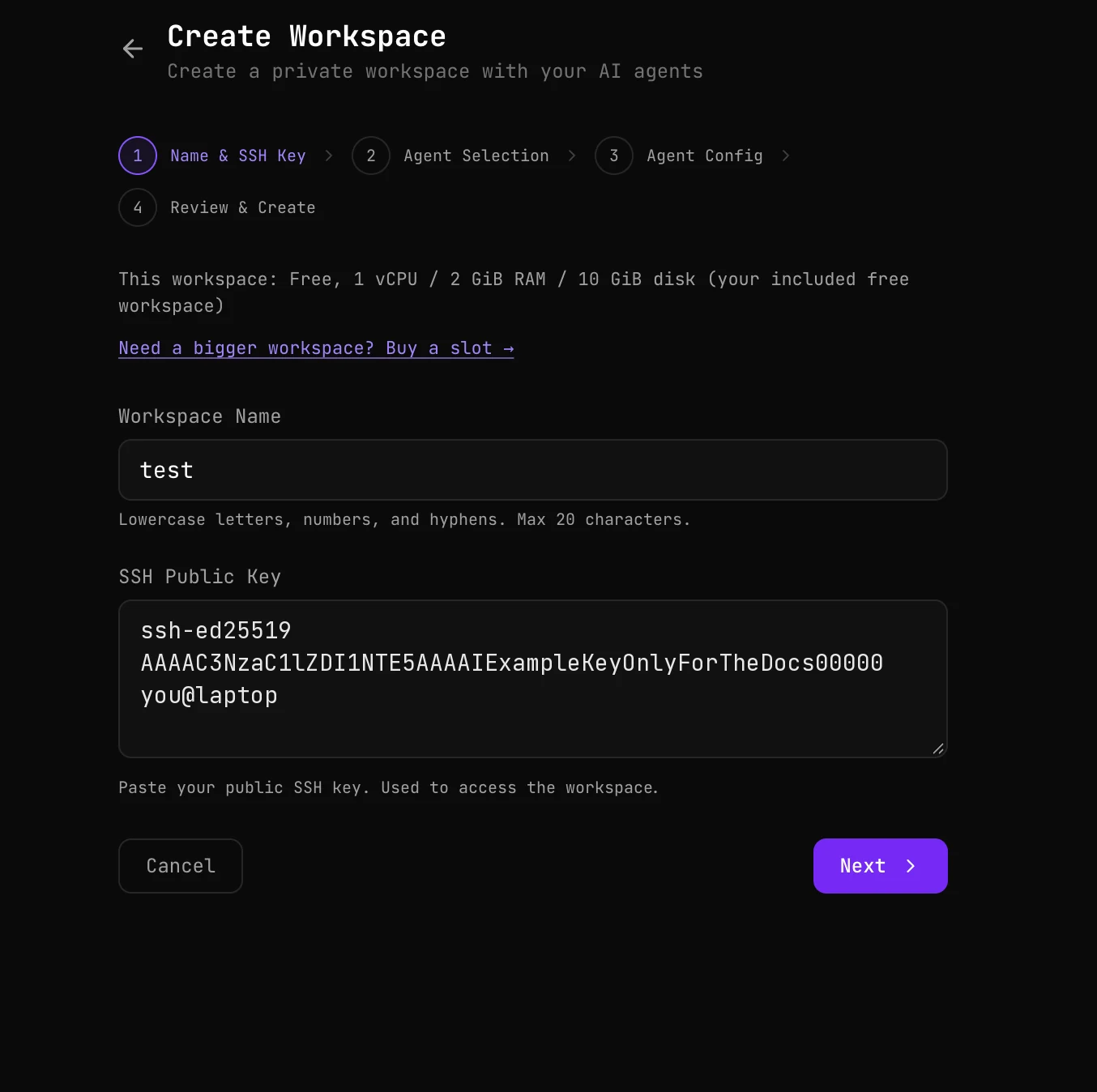
The create wizard has four steps: Name & SSH Key, Agent Selection, Agent Config and Review & Create.
Get a slot, or use your free workspace
Open Workspaces and start a new workspace. On the premium plan, the wizard tells you at the top that this one is your included free workspace (Micro: 1 vCPU, 2 GiB RAM, 10 GiB disk). If you want more room, or you are not on premium, follow Need a bigger workspace? Buy a slot: pick a size, pay with Stripe, and you come back to the wizard with the slot ready.
Name and SSH key
Give the workspace a name: lowercase letters, numbers and hyphens, 20 characters at most. Then paste your SSH public key, the line that starts with ssh-ed25519 and ends in something like you@laptop.
To see the one you already have:
cat ~/.ssh/id_ed25519.pubIf that file does not exist, create a key first (press Enter to accept the defaults) and run the cat again:
ssh-keygen -t ed25519Never paste the file without .pub: that is your private key. You can add more keys later, one per device, from the SSH keys tab.
Choose your agents
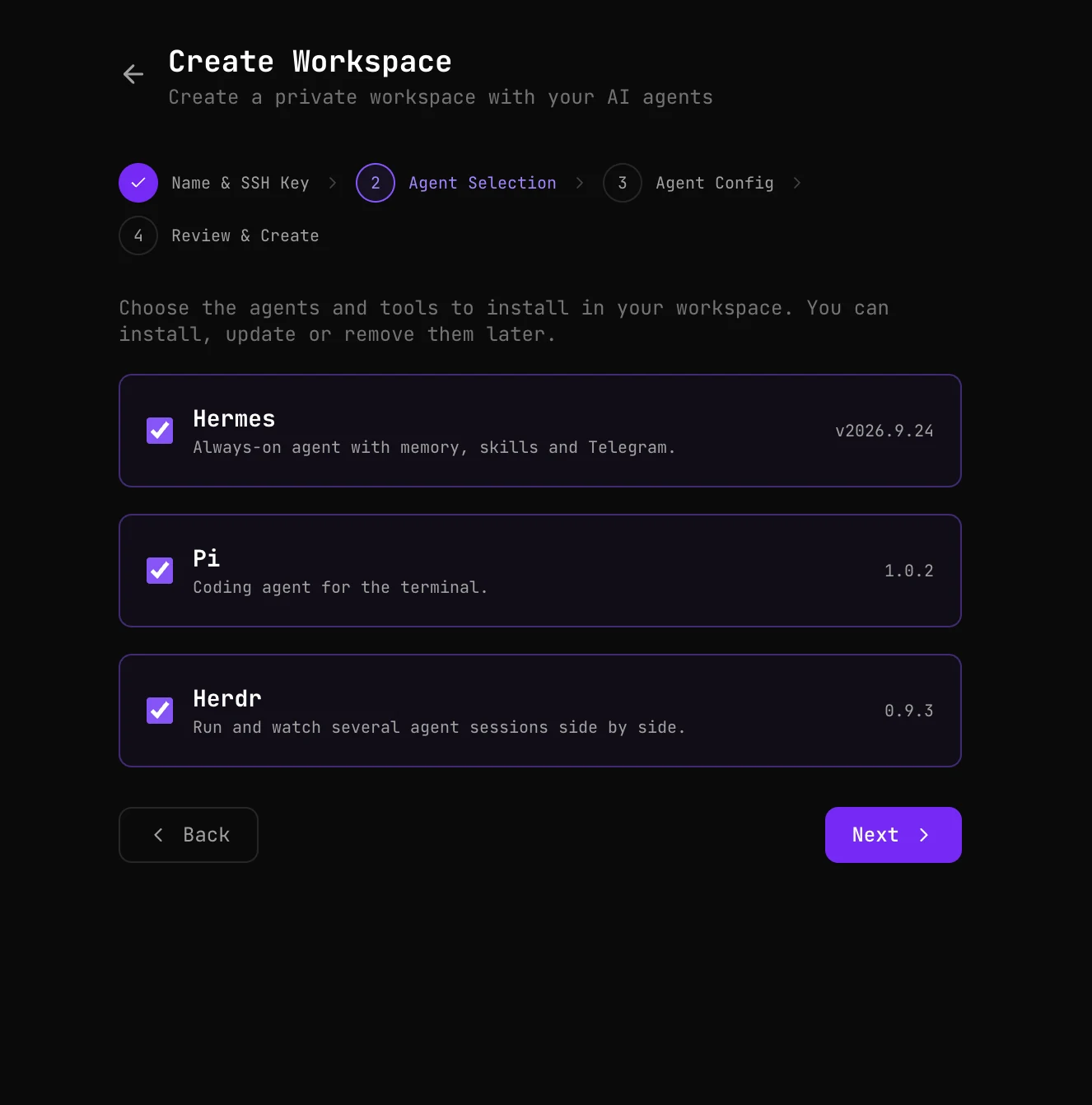
Tick the agents and tools you want, each with the version that will be installed:
- Hermes: an always-on agent with memory, skills and Telegram.
- Pi: a coding agent for the terminal.
- Herdr: runs and watches several agent sessions side by side.
Nothing here is final: you can install, update or remove any of them later from the Software panel.
Configure them
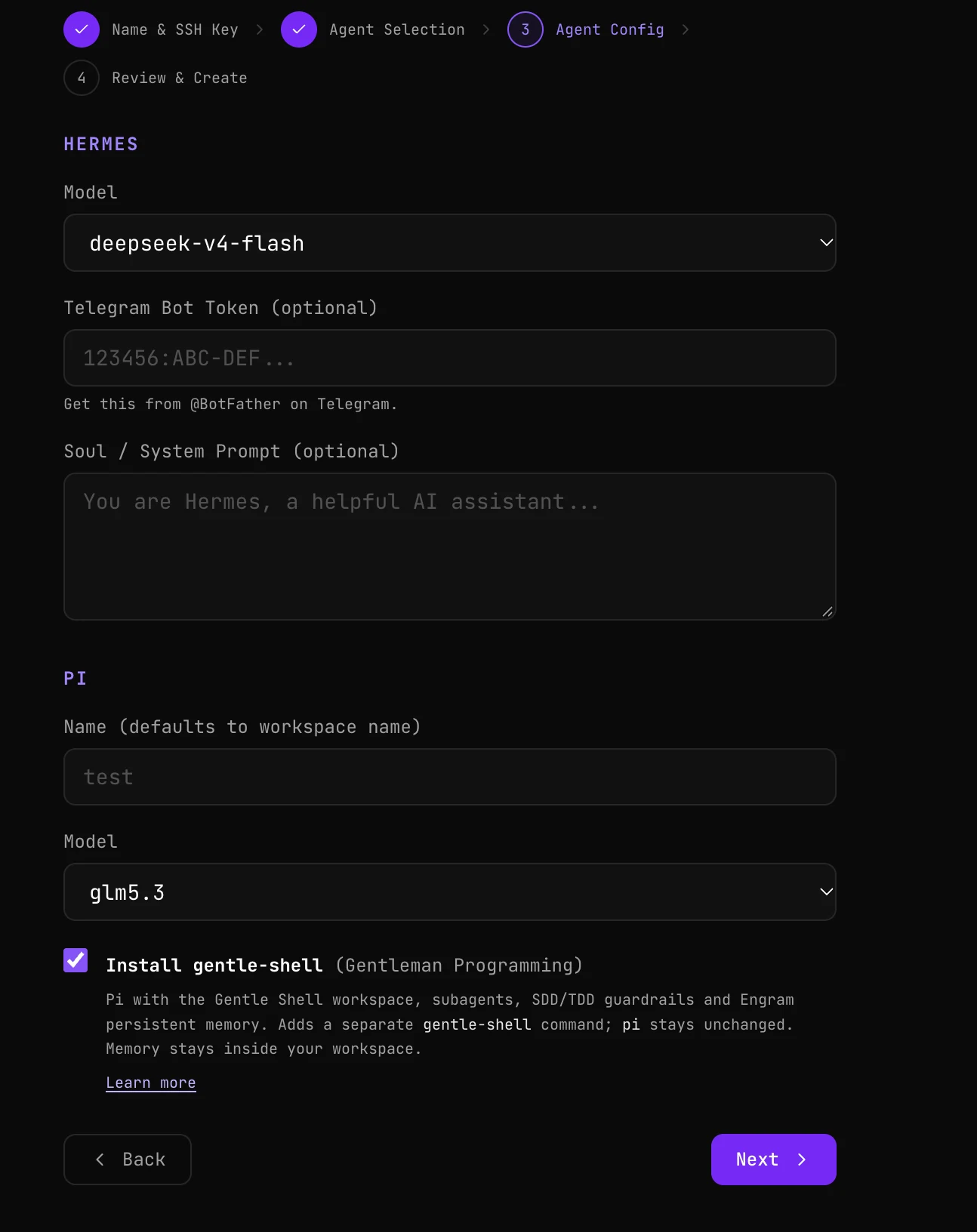
Each agent you picked gets its own block:
- Hermes: the model it uses (on an inference plan), a Telegram bot token if you want to talk to it from Telegram (optional; create a bot with @BotFather and paste the token it gives you), and its soul, the system prompt that sets its personality and instructions (optional).
- Pi: a name (it defaults to the workspace name), the model, and Install gentle-shell, which adds a separate
gentle-shellcommand with subagents, guardrails and persistent memory that stays inside your workspace.piitself stays unchanged.
Review and create
The last step sums it all up: the SSH key, the agents, the resources and the models. Check it and press Create Workspace. The workspace starts in a few seconds. If the platform is full at that moment, it waits for capacity and starts by itself: you do not need to do anything.
Connect from your phone and keep agents running 24/7 with Herdr
Your workspace stays on when you close your laptop, so your agents can keep working while you are away. With an SSH app on your phone and Herdr you can check on them, answer them and pick up the very same session from any device.
Install an SSH app on your phone
Any SSH client works. We recommend Termius, available for Android and iOS.
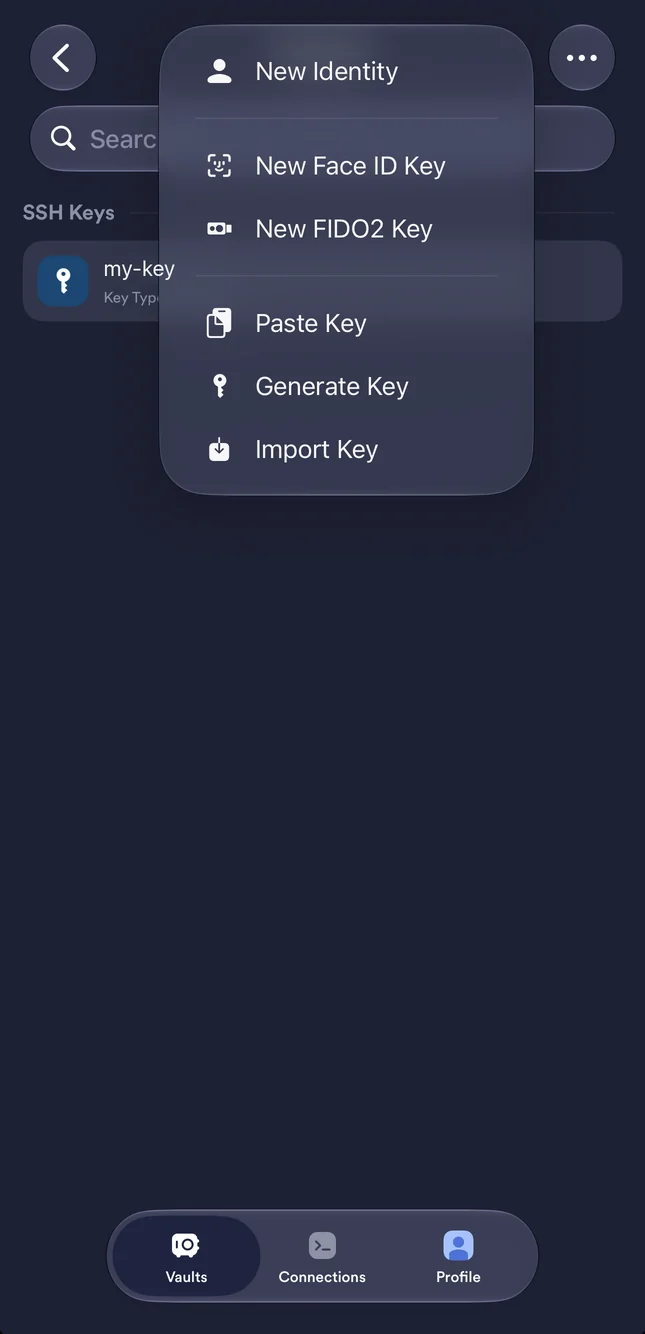
Generate a key in Termius
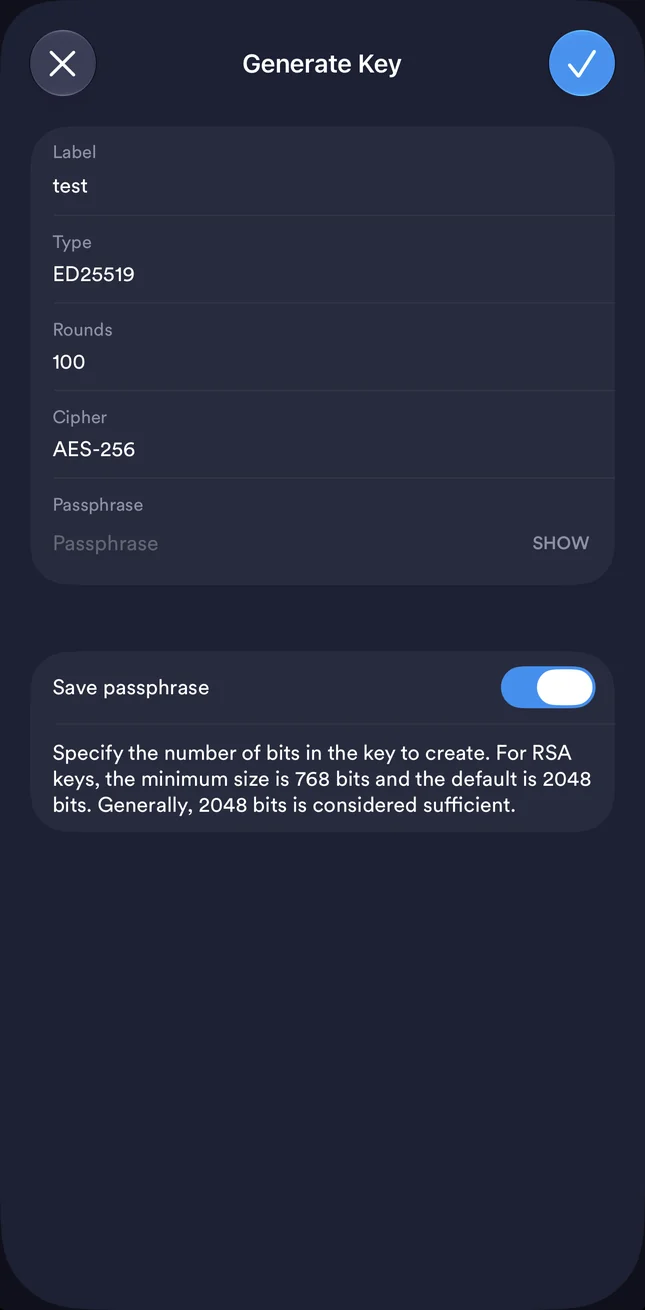
Go to Vaults, then Keychain, tap + and choose Generate Key.
Give it a name
Fill in only the Label (for example, the name of your phone) and confirm. Leave the rest as it is: the type is ED25519.
Add the public key to your workspace
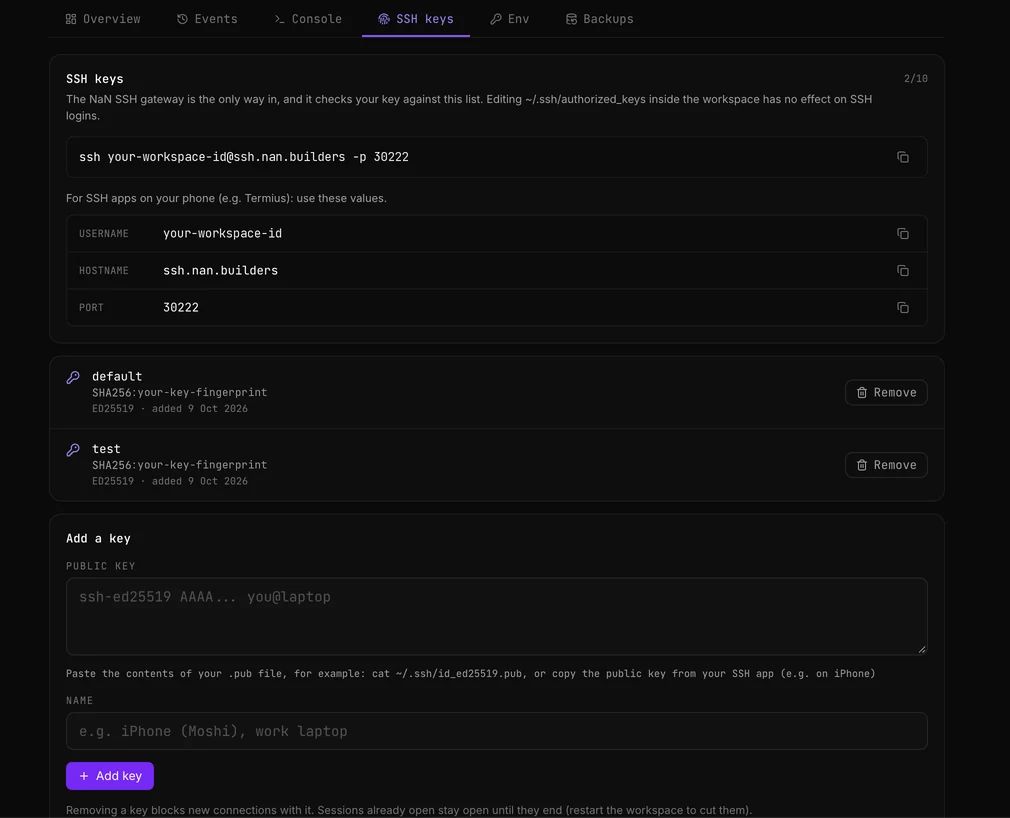
Select the key you just created. You can email it to yourself or copy the public key. Then open cloud.nan.builders/workspaces, go into your workspace and open the SSH keys tab. Paste the public key under Add a key, give it a name and click + Add key.
Only the public key
Share and paste only the public key. The private key never leaves your phone.
The same tab also shows the values your SSH app needs as separate fields you can copy: Username, Hostname and Port. You will use them in the next steps.
Create a host in Termius
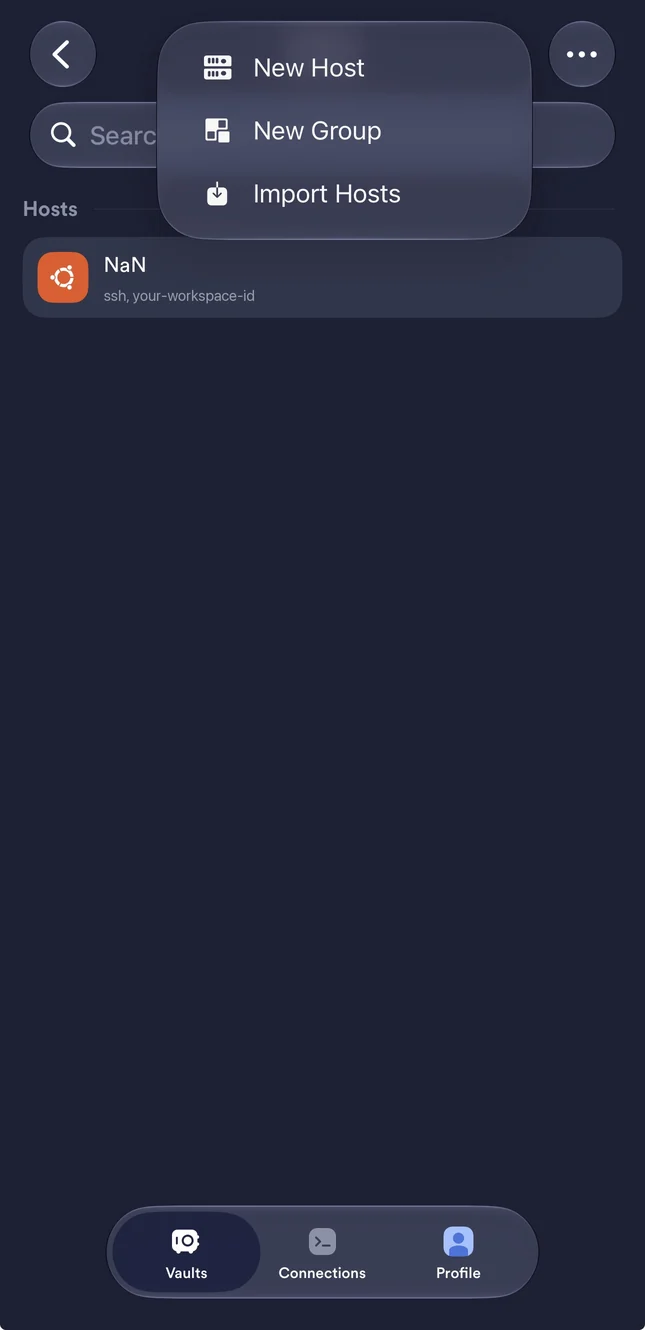
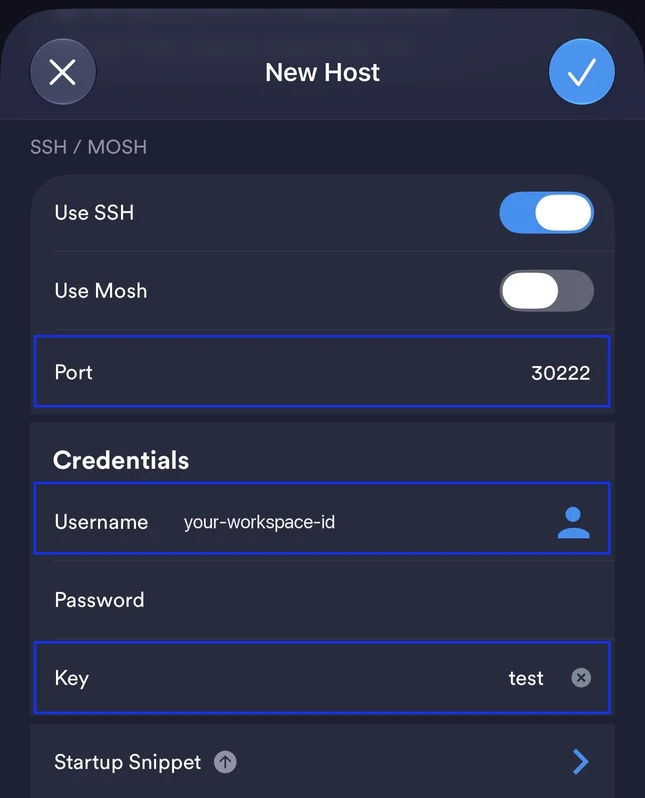
Go to Hosts and add a new host.
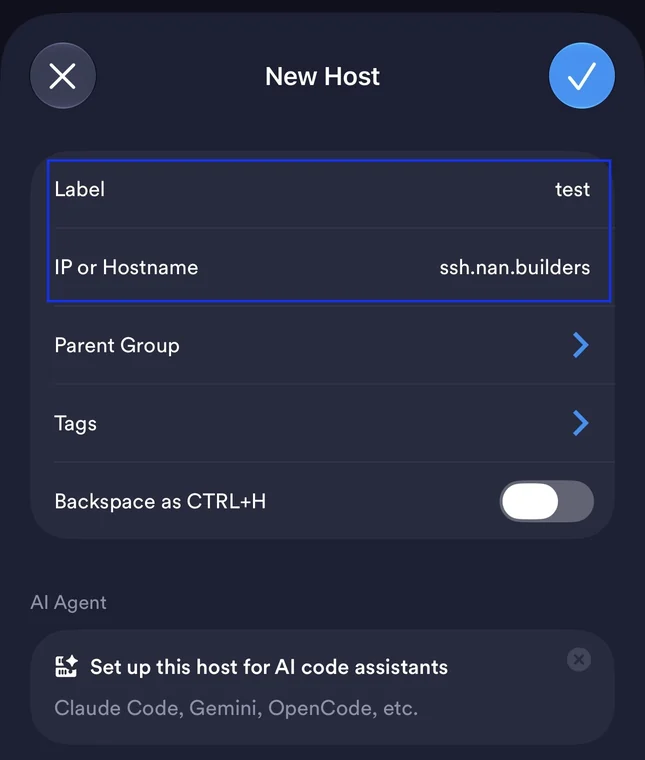
Fill in the connection details
| Field | Value |
|---|---|
| Label | Anything you like |
| IP or Hostname | Always ssh.nan.builders |
| Port | 30222 |
| Username | Copy it from the Username field in the SSH keys tab |
| Key (SSH ID, Key, Certificate, FIDO2) | The key you generated before |
Leave everything else as it is: Use SSH on and Use Mosh off. The connection only works over SSH.
Connect
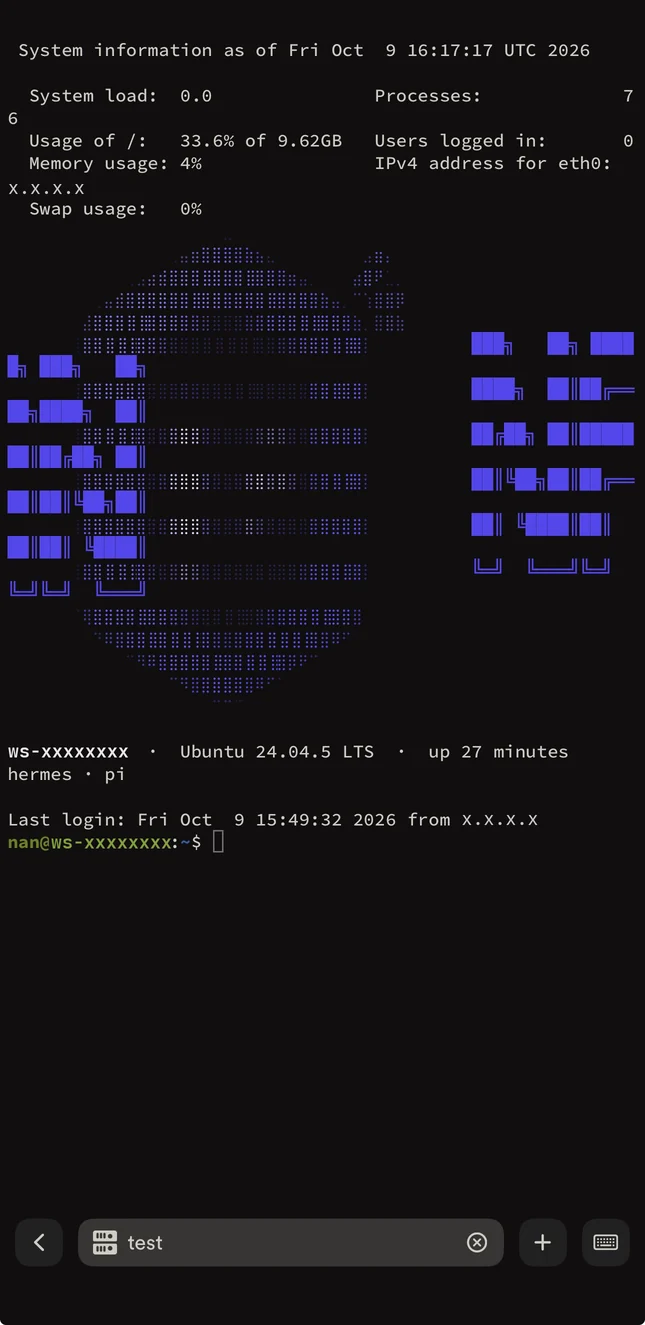
In the hosts list, tap the host you created. You are now in your workspace.
Run your agents inside Herdr
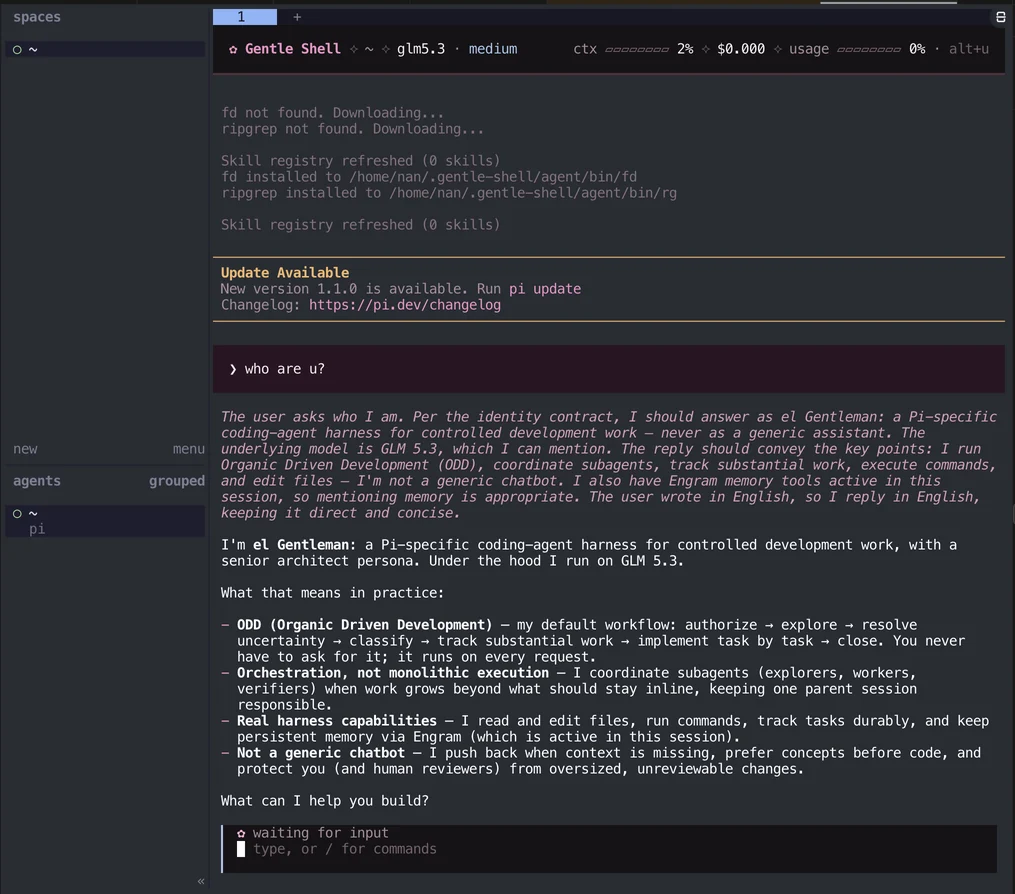
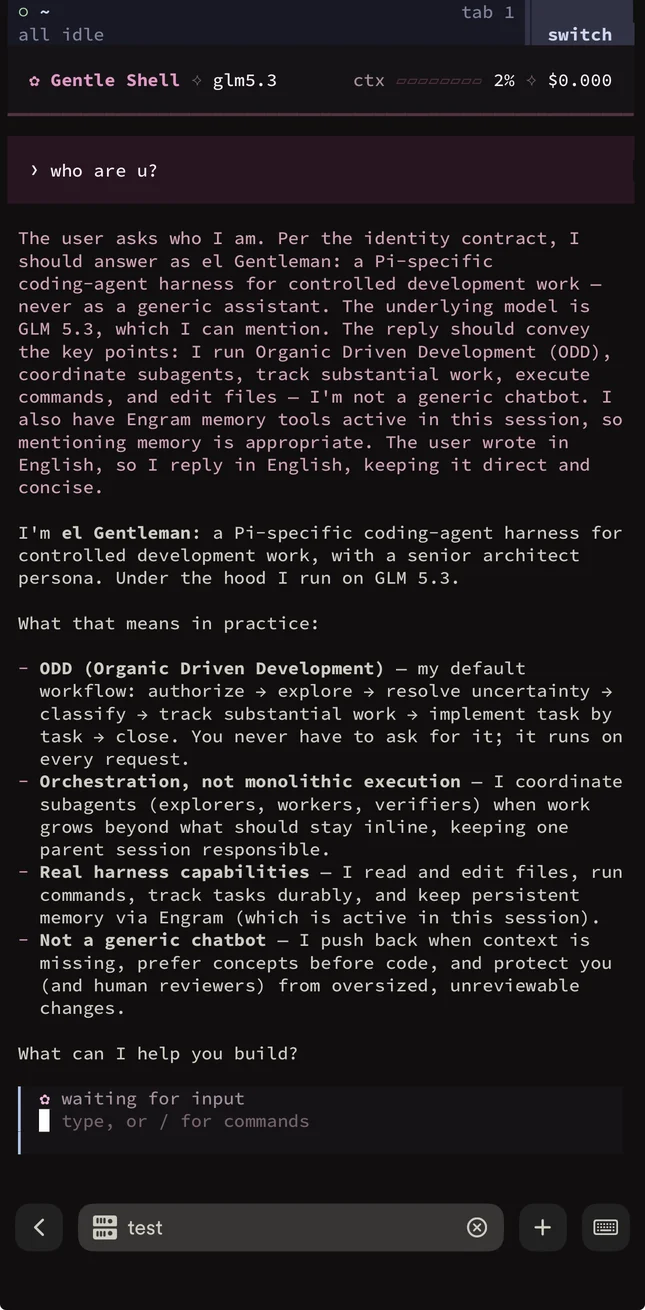
Now you can talk to your agents. Start Herdr first, and run Pi, gentle-shell or any agent of your own inside it:
herdrThe agents keep running inside Herdr 24/7, even when you close the app or lose signal. Reconnect from any device and run herdr again to reattach: you land in exactly the same session. For example, start gentle-shell from your computer and carry on with it from your phone.
A few tips:
- The first
herdrstarts a session; every laterherdrreattaches to it. Losing the connection does not stop your agents. - Use plain SSH, not Mosh: the connection to your workspace is SSH only.
- Phone keys work too: ED25519, RSA and ECDSA (P-256) keys are accepted, so you can use the one the app generated.
Connect
SSH from your terminal
The Overview tab shows the exact SSH command for your workspace, with a copy button. It looks like this:
ssh <workspace-id>@ssh.nan.builders -p 30222Copy it from the dashboard rather than typing it. The connection goes through the NaN SSH gateway, which is the only way in from outside.
SSH keys
The SSH keys tab holds the public keys allowed to log in to that workspace (up to 10). Add one per device you connect from, and remove the ones you no longer use. Removing a key blocks new connections with it; sessions already open stay open until they end.
Keys are managed in the dashboard
The gateway checks your key against the list in the SSH keys tab. Editing ~/.ssh/authorized_keys inside the workspace has no effect on SSH logins. Never paste a private key: only the .pub file.
Web terminal
The Console tab opens a terminal in the browser. It works without any SSH key, so it is also the way back in if you removed all your keys or are on a machine without your key.
Agents and the Software panel
The Software panel on the workspace’s Overview tab lists the agents and tools installed and their versions. From there you can:
- Install an agent you did not pick when creating the workspace.
- Update one, or everything at once, when a new version is out. Updates keep your files, sessions and settings.
- Remove one you no longer use.
gentle-shell is an add-on for Pi (memory between sessions with Engram), so it needs Pi installed. If your Pi is too old for it, the panel offers to update Pi first.
On an inference plan, the agents come set up to use NaN models with your membership. The setup guides for Pi and Hermes explain how to change the model or the provider by hand.
Run agents on tasks
You do not have to stay connected while an agent works. A run gives Pi or Hermes a task inside your workspace and lets it work on its own: you follow its log live, it keeps going when you close the page, and in a git repository its changes land on a branch for you to review. Start one from the Runs tab of the workspace, from your terminal with nan run, or from the API.
How it works, the limits and the commands are in Agent runs.
Backups
Workspaces have no backups unless you turn on the backup add-on for that workspace, from its Backups tab.
- A snapshot of the workspace disk is taken once a day and kept for 7 days.
- You can restore any of those snapshots yourself from the Backups tab, up to 3 times per workspace in any 24 hours. There are no on-demand backups.
- Restoring brings back everything that was on the disk at that time, including any access you configured yourself inside the machine. The keys in the SSH keys tab are not on the disk, so a restore does not change them. Snapshots are crash-consistent: restoring one is like the machine losing power at that moment.
- Turning the add-on on charges the first payment right away (prorated to your slot’s renewal date when it is added to a slot). Turning it off removes it at once, with no refund for the current month, and deletes all its snapshots.
- If the workspace enters a grace period, no new snapshots are taken and the existing ones are kept until the workspace is deleted. Once the workspace is back in good standing, turn the add-on on again within 14 days or its snapshots are deleted.
The full rules are in the terms of service.
Network rules
Your workspace can reach the internet for normal development work:
- Allowed outbound: HTTP and HTTPS (ports 80 and 443) and SSH (port 22). That covers
git,npm,pip,cargo, system package managers and calls to any API. - Blocked: everything else, including outgoing email (SMTP). A workspace cannot send mail directly; use an email API over HTTPS instead.
- Rate limits: new outbound connections are limited per workspace, with a lower limit for outbound SSH. Normal use never hits them; scanning does.
- Inbound: the only way in is the NaN SSH gateway and the Console tab. Workspaces have no ports open to the internet.
- Reverse tunnels (for example Tailscale, cloudflared or ngrok) are allowed for your own access and development, within the acceptable use policy.
Acceptable use
No crypto mining, no scanning or attacking anyone, no spam, phishing or malware, no open proxies, VPN or Tor exits, and no reselling the machine. Abuse means suspension or deletion without notice and without refund. Read the acceptable use policy before you start.
Lifecycle: grace and deletion
A workspace is never deleted the moment a payment stops. It is stopped first, and a 7-day grace period starts. The workspace page shows the exact date its data will be deleted.
| What happens | What it means for the workspace | How to keep it |
|---|---|---|
| You cancel a slot | It keeps running until the end of the paid month. Then it is stopped and deleted 7 days later. | Buy a new slot of the same size before the date shown. A slot of another size starts empty. |
| A slot payment fails | It is stopped and the 7-day grace starts. | Update your payment method in the billing portal before the date shown. |
| Your premium plan ends (you cancel or move to another plan) | Your free workspace is stopped and deleted 7 days later. | Go back to premium, or buy a Micro slot: your free workspace moves onto it with its data. |
| The workspace is suspended for abuse | It is stopped at once. | See the acceptable use policy. |
During a grace period you can start a rescue session: the workspace runs for up to 2 hours (up to 3 times a day, never past the deletion date) so you can copy your data out over SSH or the Console tab.
When the grace period ends, the workspace, its disk and its backups are deleted permanently. We cannot recover them.
FAQ
Is a workspace shared with other members?
No. Each workspace is a dedicated, isolated machine with its own CPU, memory and disk. Other members cannot see or reach it.
Does a slot include inference?
No. A slot pays for the machine. The agents use NaN models only if your membership includes inference. Without it you can still install the agents and connect them to another provider.
Can I have more than one workspace?
Yes. Buy one slot per workspace, in any mix of sizes. Premium members also get one free Micro workspace on top of their slots.
Can I change the size of a workspace?
Not in place. Buy a slot of the new size, create a workspace on it, copy your data over and delete the old one. Canceling the old slot ends its billing at the end of the month.
My community plan was opened in dollars. Can I buy a slot?
Yes. Workspace slots are billed in euros, so the portal first moves your plan to euros and then lets you buy. It tells you before charging anything.
Can I send email from my workspace?
Not over SMTP: outgoing mail ports are blocked. Use the HTTPS API of an email provider.
Can I expose a web app from my workspace?
Workspaces have no public ports. For your own access and testing you can use a reverse tunnel. To publish an app for other people, use Apps.
Where do I get help?
Write in #support on Discord.